FAQs#
How do I use deep-linking with Portal?#
You can create a direct link to pre-fill chain and asset selections on Portal Bridge using URL parameters.
| Parameter | Description |
|---|---|
sourceChain | A source chain that will be pre-selected. |
targetChain | A target chain that will be pre-selected. |
asset | The asset key on the source chain (e.g., SOL, USDC, etc.). |
targetAsset | The asset key on the destination chain. |
Example:
This link will open Portal with:
sourceChainpre-selected assolana.targetChainpre-selected asethereum.assetpre-selected asSOL.targetAssetpre-selected asWSOL.
Note
For NTT tokens, you can define just one asset if the same token exists across chains.
Example: https://portalbridge.com/?sourceChain=ethereum&targetChain=solana&asset=W
What does the "Send to a wallet address" field do?#
After selecting your tokens and connecting your source wallet on Portal, you'll be prompted to connect your destination wallet. At this step, alongside wallet options like MetaMask or Phantom, you'll also see an option labeled "Send to a wallet address". This flexibility allows you to enter any wallet address as the recipient rather than connecting a destination wallet, enabling you to send tokens to a predefined recipient, such as a team wallet, treasury address, or cold storage wallet.
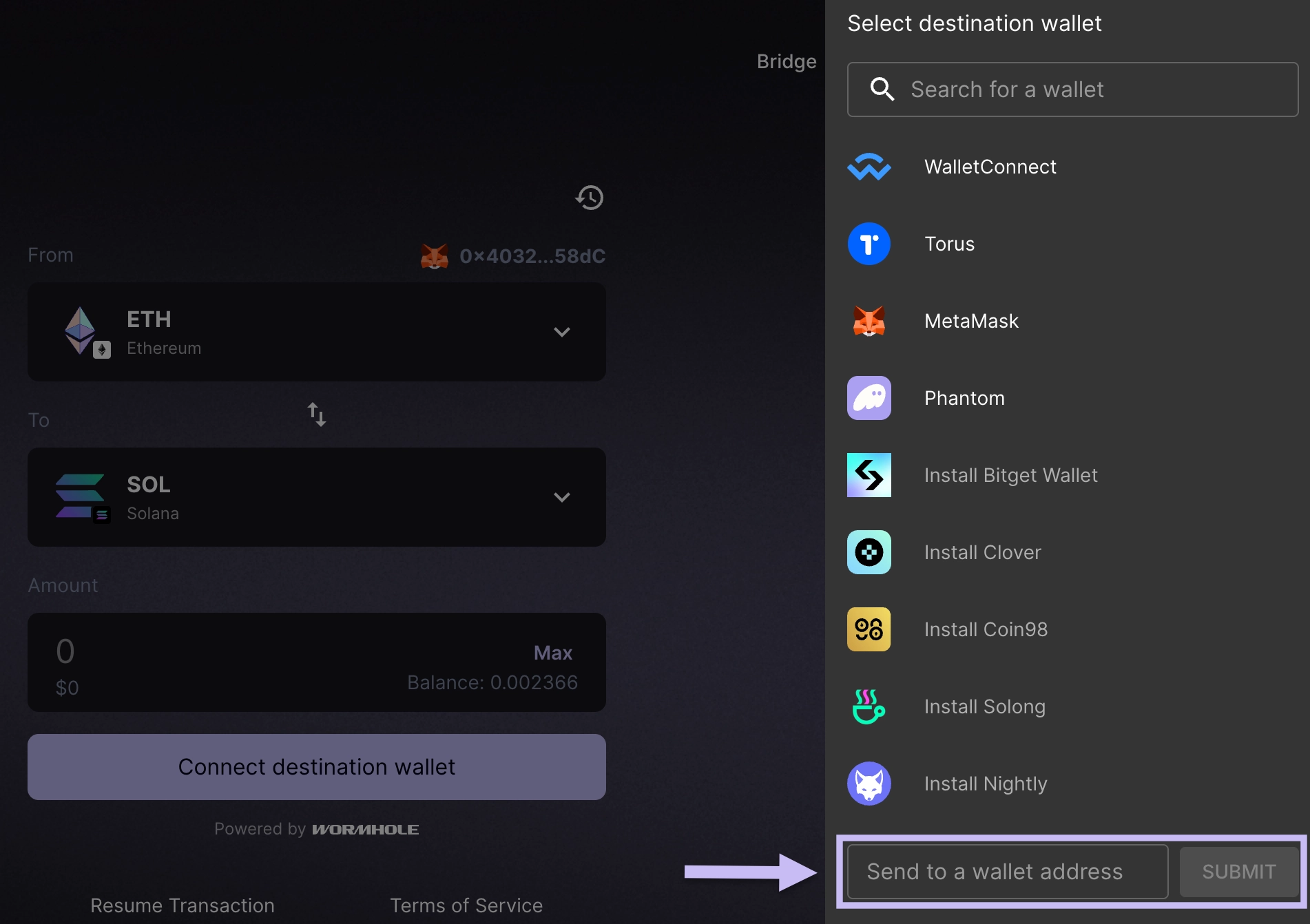
This field is optional. If left empty, the tokens will be sent to your connected wallet.
Why is the token that I deployed using the WTT / NTT framework not showing up in the Portal Bridge UI?#
While deploying tokens to new chains via Wormhole is fully permissionless, these tokens do not automatically show up on the Portal UI. Wormhole Contributors maintain discretion in configuring tokens for Portal to prevent abuse. You can quickly spin up your own UI for token transfers using Wormhole Connect. See the demo repositories to get started:
Why is my CCTP transfer stuck and can't be redeemed?#
If your transfer is stuck and you're unable to complete it through Portal, it may have been initiated through a third-party app or smart contract that reserved the right to finalize it. In that case, Portal is unable to complete the redemption on your behalf. Only the original app can.
To resolve this, go back to the app or platform you used to start the transfer and look for an option to complete or claim it there.
If you want to investigate further, check the events of your originating transaction for a destination_caller field. If it's set to a non-zero address, that's the address exclusively authorized to redeem the message and the reason Portal can't complete it.
| Created: March 20, 2026